Configure AsciiDoc
By default, Assembler passes all attributes that are set on a component version to the AsciiDoc processor when reducing AsciiDoc documents. It also passes these attributes to the converter so they are set when the assembly is converted to the target format.
Assembler allows additional attributes to be specified (set or unset) using the configuration.
You can configure which additional AsciiDoc attributes are set by Assembler using the assembly category key in the Assembler configuration.
attributes key
Refer to attributes key.
Portability considerations
Refer to Portability considerations.
Intrinsic attributes
In addition to the attributes specified in the configuration, several intrinsic attributes are set by Assembler. These attributes, along with their default values, are listed in the following table.
| Attribute Name | Default Value | Example Assignment |
|---|---|---|
doctype |
book |
doctype=book |
revdate |
<local date> |
revdate=2025-01-01@ |
loader-assembler |
empty |
loader-assembler= |
assembler-backend |
<target backend> |
assembler-backend=html-single |
assembler-backend-<backend> |
empty |
assembler-backend-html-single= |
assembler-format |
<target format> |
assembler-format=html |
assembler-format-<format> |
empty |
assembler-format-html= |
assembler-filetype |
<target filetype> |
assembler-filetype=html |
assembler-filetype-<filetype> |
empty |
assembler-filetype-html= |
assembler-profile |
<target backend> |
assembler-profile=html-single |
assembler-profile-<profile> |
empty |
assembler-profile-html-single= |
assembler-root-level |
<configured root level> |
assembler-root-level=1 |
The distinction between format and filetype can be subtle. The filetype is always the file extension (i.e., extname) without the leading dot (e.g., xml). The format is the logical format (e.g., docbook). However, a lot of the times, they are the same value (e.g., pdf).
Assembler also sets the standard docname, docfile, docdir, docfilesuffix, outfile, outdir, and outfilesuffix intrinsic attributes that are typically set whenever an AsciiDoc file is loaded.
If you don’t want the revdate to be set in the assembly, you can soft (or hard) unset it in the Assembler configuration:
assembly:
  attributes:
    revdate: false
Assembly attributes
There are several AsciiDoc attributes you can use to control how the assembly is constructed. These attributes typically must be set in the header of the merged page. Some attributes only apply to the root page.
Since assembly-overview-title provides a recurring value, you can set it in the configuration.
You can also set assembly-docname in the configuration when root level is 0.
The attributes that control the assembly can be found in the following table. A default value surrounded in angled brackets indicates a computed value.
| Attribute Name | Root Page Only | Default Value | Description |
|---|---|---|---|
assembly-docname |
Yes |
index (root level 0) |
Used to control the basename of the assembly (and thus export) without the filename. |
assembly-doctitle |
Yes |
<component title> (root level 0) |
Used to override the (full) doctitle of the assembly. |
assembly-doctype |
Yes |
<inherited from Assembler configuration> |
Used to override the doctype of the assembly. |
assembly-header-attributes |
Yes |
%authors |
Used to specify attributes to promote from the page header to the assembly header. |
assembly-navtitle |
No |
<navtitle of page> |
Used to override the navtitle for the page. |
assembly-overview-title |
No |
Overview |
Used as the section title for an overview section (when section_merge_strategy is enclose). |
assembly-root-title |
Yes |
<the preface-title for a preface, otherwise the assembly navtitle> |
Used as the first section title when the assembly style is specified. |
assembly-style |
No |
not set |
Used to either add an AsciiDoc section style to the section of the merged page, flag it as a part (i.e., |
The attributes that define a title (assembly-doctitle, assembly-navtitle, assembly-overview-title, assembly-root-title) get interpreted just like a section title in AsciiDoc.
That means they support normal substitutions, unlike a typical attribute entry value.
That’s because the value of these attributes get inserted into the AsciiDoc heading syntax.
You can find examples for most of these attributes in Use cases.
Resource references
Any xrefs in the merged set of attributes are rewritten relative to that assembly (just like an xref within a page). All other references (e.g., images) in the merged set of attributes for an assembly are rewritten relative to the component version.
When Assembler rewrites a reference to a page included in the assembly, it converts it from an interdocument xref to an internal xref.
In other words, the target of the reference becomes an ID (within the assembly) rather than a resource.
If you want the reference to use automatic cross reference text, then no explicit text can be specified in the original xref (e.g., xref:install.adoc[]).
If the reftext attribute is defined on the page, then it gets used (by the converter) as the text of the reference and the xrefstyle will not be honored.
If you want the xrefstyle to be honored, only define the reftext attribute outside the scope of Assembler.
For example:
ifndef::loader-assembler[[reftext=The Reference Text]]
= The Page Title
See Conditional content for more details about how to use conditionals to control what content is used in the assembly.
How the navtitle is resolved and handled
The navtitle for a merged page is resolved in the following order, falling through to the next in succession if the previous is not specified:
-
The non-empty
assembly-navtitleattribute in the page header. -
The non-empty text of the xref to the page in the navigation.
-
The non-empty
navtitleattribute in the page header. -
The page’s doctitle.
We call this value the assembly navtitle. See Override navtitle for more information.
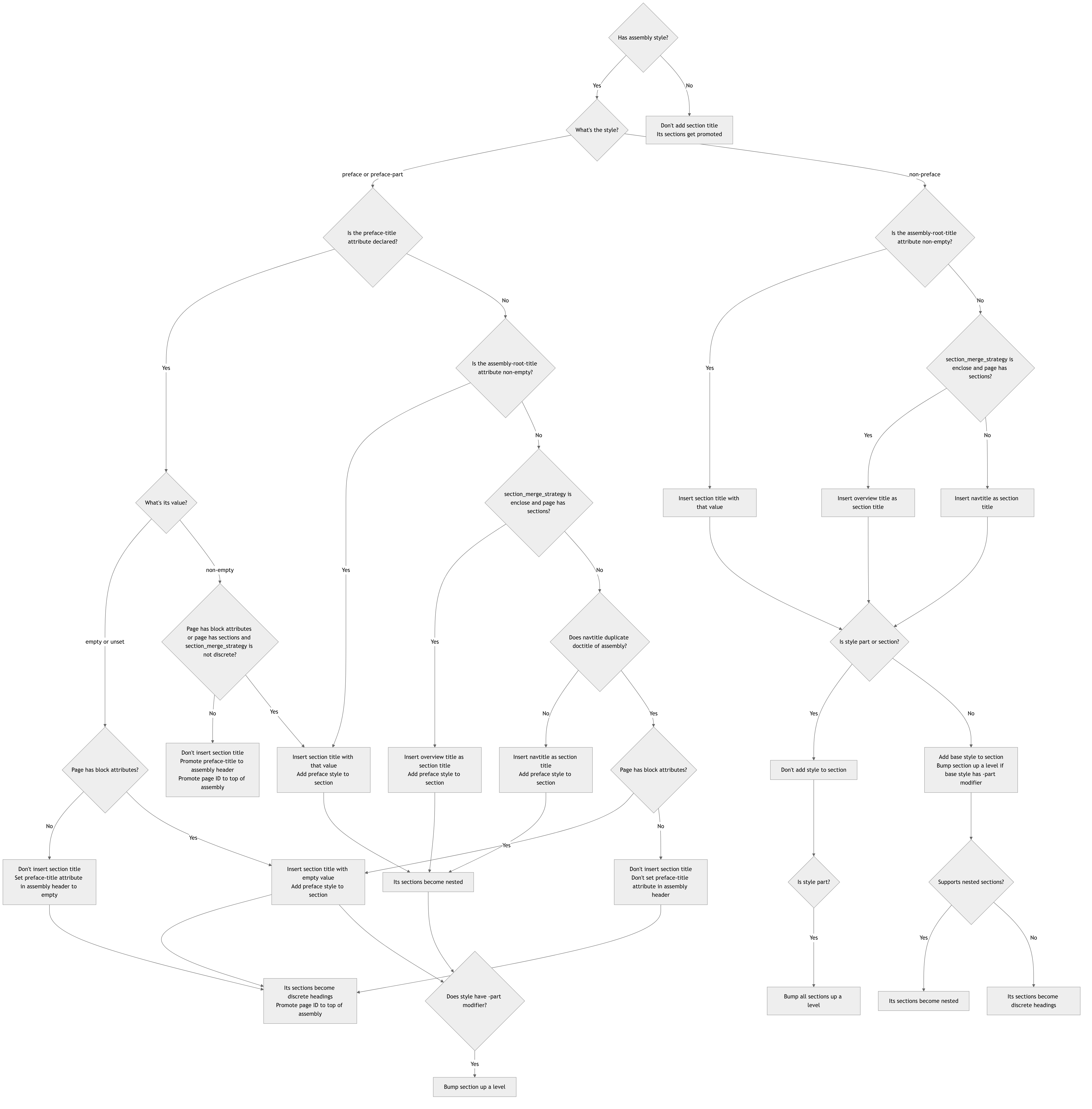
Typically, the assembly navtitle for a merged page becomes a section title in the assembly. However, that’s not always the case for the leading page.
For the root page (always the leading page), the assembly navtitle is ignored if the assembly style is not set. For a non-root page that’s the leading page, the assembly navtitle is ignored if the assembly style is not set and it duplicates the assembly’s doctitle. Setting the assembly style implicitly puts the assembly navtitle back into play. See Configure the assembly style for more information.
The following two diagrams describe when the assembly navtitle is used in the assembly, and how.
First let’s look at the flow for the root page.
Now let’s look at the flow for the non-root page.
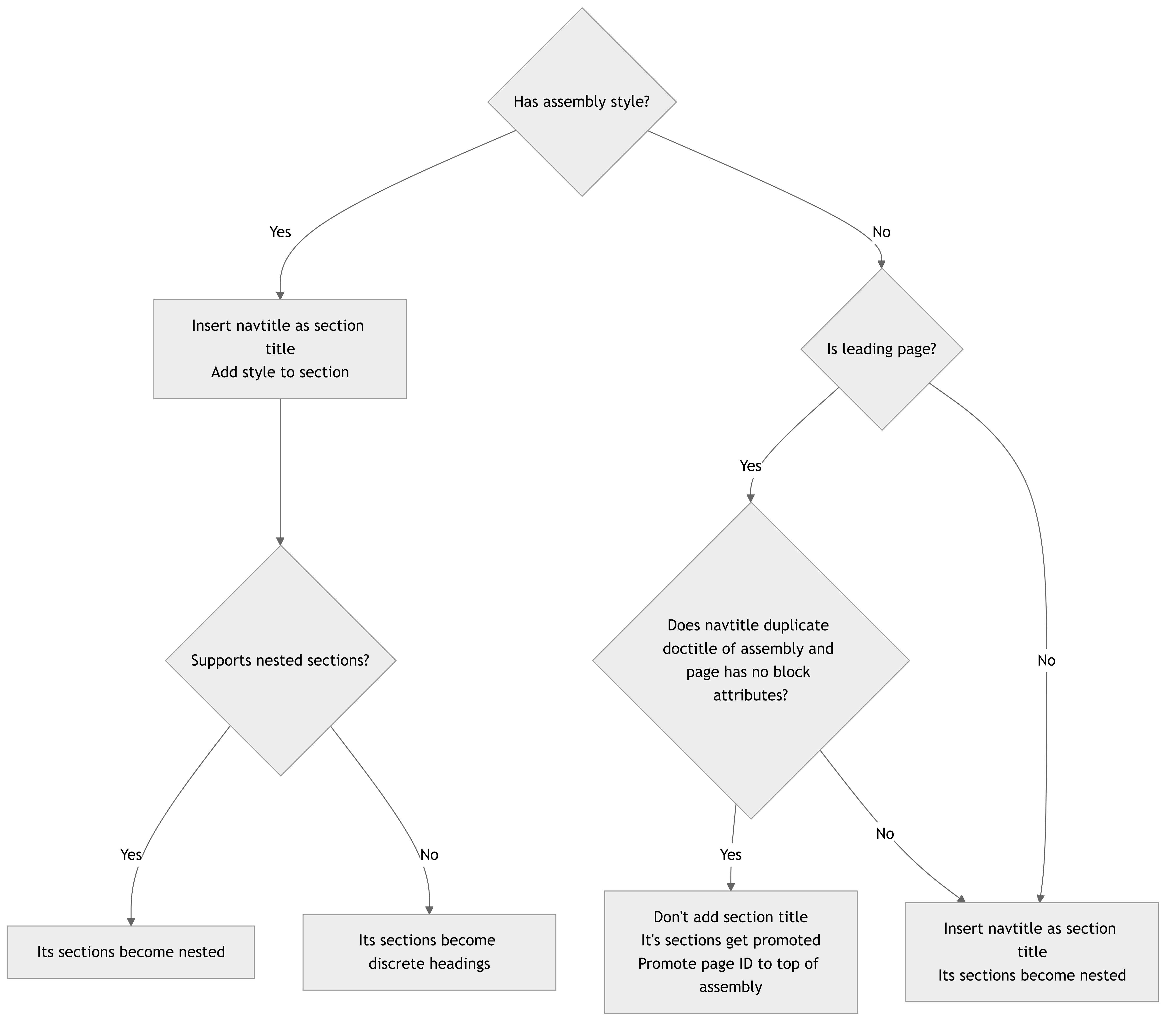
The flow for the root page is more complex since the root page can influence the assembly header and can host the main preface. The flow for the non-root page is less complex flow since it’s mostly focused on avoiding a duplicate section title at the start of the document.
Use cases
Enable the TOC
To add a Table of Contents to each export (e.g., PDF), set the toc attribute in antora-assembler.yml.
assembly:
  attributes:
    toc: ''
Activate a custom PDF theme
The pdf-theme attribute is used to activate and apply a custom theme when converting to PDF.
The pdf-theme attribute accepts the name of a YAML file stored in your playbook directory.
In this example, the file is named pdf-theme.yml.
assembly:
  attributes:
    pdf-theme: ./pdf-theme.yml
Reference images using an image attributes
Image attributes are a unique feature of Asciidoctor PDF and Asciidoctor EPUB that allow images to be configured using an image macro in an attribute. Assembler recognizes and processes the value of these image attributes so the converter can resolve the image.
If the name of a global AsciiDoc attribute ends with -image (e.g., title-logo-image) and the value of that attribute is an image macro (e.g., image:the-component::logo.png[] whose target is an Antora resource reference, Assembler will resolve the resource, copy that file into the build directory, and rewrite the target of the macro so the converter (e.g., Asciidoctor PDF) can locate it.
(A global AsciiDoc attribute is one defined in the Antora playbook, component version descriptor, or Assembler configuration file).
In other words, if an attribute name ends with -image, the target of the image macro in the value can be an Antora image reference.
Since Assembler runs outside the context of any component, the resource reference must be fully qualified, meaning it must start with a component name.
If the image target does not match the resource reference syntax (meaning it’s a URL or otherwise does not contain a colon), then the target is resolved as is.
If the target is a relative path, the path is resolved starting from the value of the intrinsic imagesdir attribute, which is the Assembler build directory.
Here’s an example of how to use an image from the site as the logo image on the title page (for converters that support it).
assembly:
  attributes:
    title-logo-image: image:the-component::logo.png[pdfwidth=1in]
Refer to Logo image to learn more about how to use the title logo image with Asciidoctor PDF.
Keep in mind that this feature only works when using image attributes. It’s not possible to define an image whose target is an Antora resource reference in the Asciidoctor PDF theme file. The value of these theme keys is not processed by Assembler.
Configure the xrefstyle
When producing an export, you may want to use a more formal xrefstyle than is used in the web pages. For example, you may want references to read as “Section 1.4” instead of the title of the referenced section.
To do so, you set the xrefstyle attribute under the asciidoc key in the assembly configuration:
assembly:
  attributes:
    xrefstyle: short@
Notice that we appended @ to the value.
This modifier soft sets the attribute to allow it to be tuned around a set of blocks in the assembly.
The xrefstyle is only applied to references that don’t specify explicit text. However, if the explicit text matches the xreftext, you can configure it to be ignored. See drop_explicit_xref_text.
One thing to be mindful of when using xrefstyle is that if the reference depends on the use of the target text, that text is going to change when setting the xrefstyle. In those cases, you may need to specify the xrefstyle directly on the xref macro. For example:
xref:id-of-target[xrefstyle=basic]That ensures the plain title of the target is always used, even when the content is exported.
Override ID prefix
If a rewritten ID starts with a character other than a letter, underscore, or colon, Assembler must add a prefix in order to make the ID valid.
By default, this prefix is _.
If you want to use a different prefix, you can specify it in the Assembler configuration using the assembler-idprefix attribute.
assembly:
  attributes:
    assembler-idprefix: anchor-
Note that this prefix is not added to all IDs, only when necessary.
Override navtitle
By default, Assembler uses the navtitle as the starting section for a page in the assembly as well as the subtitle for the assembly when root level is 1.
If you want to use a different navtitle in the assembly than what’s defined in the navigation, you can assign a non-empty value to the assembly-navtitle attribute in the document header of the page.
For example:
= The Page Title
:navtitle: Page Title
:assembly-navtitle: Page Title in Assembly
If you want to use the doctitle as the section title in the assembly instead of the navtitle, alias the assembly-navtitle to the doctitle attribute:
= The Page Title
:navtitle: Page Title
:assembly-navtitle: {doctitle}
The value of the assembly-navtitle works just like the navtitle attribute, except it’s used by Assembler (and always takes precedence).
Note that changing the navtitle using assembly-navtitle also impacts the assembly doctitle and the filename of the assembly when the root level is 1.
The assembly-navtitle attribute is not propagated to the assembly document.
Instead, it’s value is used as the title of the corresponding section.
If your intent is to hide the title in the assembly, set the notitle option on the page header instead.
|
Configure the assembly style
Except for the root page, the navtitle of the merged page becomes a section in the assembly. You can designate the merged page as a special section by specifying the assembly style. You can also use the assembly style to force a section title to be inserted for the root page (or for the leading page whose navtitle duplicates that assembly doctitle).
The assembly style can be specified using the assembly-style attribute in the document header of the page.
For example, you can make the page an appendix as follows:
= Known Issues
:assembly-style: appendix
The assembly style on the root page has special significance. If the section merge strategy is fuse, the navtitle is dropped and any sections on that page are promoted to top-level sections in the assembly. However, if the assembly style is specified, then the sections become children of that special section (also true if the section merge strategy is enclose). This functionality is most often used to make the root page serve as the preface of a book or the preamble or abstract of an article.
| The style preamble is not recognized. You must always use preface, even if the doctype is not book. |
For convenience, you can set the default assembly style for the root page using the assembly.root_page_style key in the configuration.
Note that the assembly-style attribute still takes precedence.
For the merged page at the assembly root, the assembly-root-title can be used to force a section title to be inserted when an assembly style is specified.
This attribute is akin to the preface-title for the preface, except it applies to any special section.
= {page-component-title}
:assembly-style: abstract
:assembly-root-title: Platform Overview
If your only goal is to force a section title without creating a special section, you can use the assembly style section.
= {page-component-title}
:assembly-style: section
:assembly-root-title: Introduction
If you want to create a chapter, use the assembly style section.
The chapter classification is implied based on the doctype.
Use root page as preface
You can configure the whole root page (typically the start page) to serve as the book preface (or article preamble) by setting the assembly style to preface.
In this scenario, the preface-title attribute (or assembly-root-title attribute) can be used to set a title for the preface.
-
If the assembly style is set as
prefaceand the root level is 0, the whole page serves as the preface; the title is retrieved from thepreface-titleattribute, if defined (set or unset), otherwise the computed navtitle. -
If the
preface-titleattribute is set on the preface root page (even if empty), and the page has no sections or block attributes, thepreface-titleattribute is automatically promoted to the header in lieu of making a preface section. -
If the preface root page has sections or block attributes, a dedicated preface section is introduced instead of the
preface-titleattribute being promoted. If present, the sections are shifted down a level.
Here’s an example of the start page for a root level 0 assembly acting as the book preface:
= Start Page
:assembly-style: preface
:preface-title: Introduction

This is the book preface.
Override doctitle
You can override the doctitle of the assembly by setting the assembly-doctitle attribute on the root page.
If the root level is 1, and you still want the doctitle to be qualified, be sure to include the component title.
= Root Page
:assembly-doctitle: Title of Assembly

The content starts here.
If the root level is 1, this will also modify the filename.
To avoid this coupling, you can also set the assembly-docname.
= Topic
:assembly-doctitle: Title of Assembly
:assembly-docname: topic

The content starts here.
Alternately, you can set the doctitle attribute (behind a conditional) and promote it to the assembly header.
= Topic
ifdef::loader-assembler[]
:doctitle: {page-component-title}: Title of Assembly
:assembly-header-attributes: doctitle,%authors
endif::[]

The content starts here.
In this case, the filename will still be generated from the navtitle (in this case, “Topic”). However, overriding the doctitle this way bypasses the logic to drop the first section if it duplicates the doctitle.
Override filename
By default, the filename of the export is generated automatically.
When root level is 0, the filename stem (the part without the file extension) is index.
When root level is 1, the filename is generated from the navtitle of the assembly.
To generate the filename, the navtitle is converted to lowercase, HTML tags are removed, character references are converted to characters, quotes are removed, underscores and periods are replaced with hyphens, and any characters other than letters, numbers, or hyphens are dropped.
You can use the assembly-docname attribute on the root page to override the filename of the export.
= The Manual
:assembly-docname: manual
The docname must only contain letters, numbers, underscores, periods, and hyphens. Any invalid characters (including spaces) are replaced with hyphens. Leading and trailing hyphens are removed and repeating hyphens are condensed.
The assembly-docname permits underscores and periods, whereas the auto-generated docname does not.
|
If the assembly-docname attribute is not defined in the root page of the assembly, it’s ignored.
The assembly-docname attribute is not propagated to the assembly document.
If you prefer, you can change the filename of the export using an Antora extension instead. Let’s move all root level 0 exports to the top-level of the site and use the pre-computed download value as the filename.
We’ll leverage the createFile method on the content catalog to compute the out and pub properties, then assign those to our export.
The benefit of using createFile is that it works out all the details with the latest and prerelease version segments, where applicable.
By modifying the out and pub properties, we ensure that the link to the export from the UI will remain intact.
Since we’re listing for the navigationBuilt event, this extension must be registered after the exporter extension.
module.exports.register = function () {
  this.once('navigationBuilt', ({ contentCatalog }) => {
    const exportFiles = contentCatalog.findBy({ family: 'export' }).filter((it) => {
      return it.src.stem === 'index' && it.assembler?.rootLevel === 0
    })
    for (const exportFile of exportFiles) {
      const newFile = contentCatalog.createFile({
        src: { component: 'ROOT', version: '', module: 'ROOT', family: 'export', relative: exportFile.pub.download },
      })
      Object.assign(exportFile, { out: newFile.out, pub: newFile.pub })
    }
  })
}
You know an export was created by Assembler by the presence of the assembler property.
You can also tell that the export was once an AsciiDoc file by inspecting the history property on the file.
|
If you want to eliminate the _exports directory from the output path and URL, you’ll need to further manipulate the properties on out (dirname, path, moduleRootPath, and rootPath) and pub (url, moduleRootPath, and rootPath).
Override doctype
You can override the doctype for a given assembly using the assembly-doctype attribute on the root page.
If set, this value overrides whatever value is set in the assembly configuration.
= Glossary
:assembly-doctype: article

term:: def
This attribute allows you to control the doctype of a given assembly if it has different needs.
Toggle section numbering
If you have enabled section numbering for the assembly (and thus the export), you can turn off section numbering for a given page by unsetting the sectnums attribute in the page header.
For example:
== Introduction

content
You might decide to combine this with the assembly-style, such as for a glossary.
Promote attributes to header
Assembler controls the header of the assembly document, populating it with a fixed set of attribute entries.
It’s possible to add additional attribute entries by promoting them from the root page using assembly-header-attributes.
This feature is intended for attributes that are used as metadata or settings, such as revnumber, revdate, title-logo-image, etc.
The root page is defined as the top-level page in the outline to defines the assembly. When root_level is 0, this is typically the component version start page. When root_level is 1, this is the page referenced by each top-level outline entry.
The root page can promote attributes in its own header to the assembly header using the assembly-header-attributes attribute.
This attribute accepts a comma-separate list of attribute names.
For example:
= The Project
:revnumber: 1.0-GA
:revdate: 2026-01-01
:url-example: https://example.org
:assembly-header-attributes: revnumber,revdate
Note that the attribute url-example is not promoted and thus only visible within the merged page.
If you don’t want revdate to be set, you can unset it in the page header.
You can also unset any other attribute as long as its value is soft set in the configuration, such as title-logo-image.
= The Project
:revnumber: 1.0-GA
:!revdate:
:!title-logo-image:
:url-example: https://example.org
:assembly-header-attributes: revnumber,revdate,title-logo-image
The assembly-header-attributes also accepts the special attribute name %authors, which promotes all the author-related information to the header.
For example:
= The Project
Project Team <info@project.example.org>
:revnumber: 1.0-GA
:revdate: 2026-01-01
:url-example: https://example.org
:assembly-header-attributes: %authors,revnumber,revdate
If the assembly-header-attributes attribute is not specified, it defaults to %authors.
The assumption is that the authors defined on the root page are the authors for the assembly.
If you don’t want any attributes to be promoted, set the value of the attribute to empty.
The reason that all attributes are not promoted is that it would alter the scope of those attributes, leading to dependency on the broader scope of the attribute in the assembly that’s not present in the page.
Use root page without creating preface
If you want to promote the top-level sections on the root page to chapters, don’t set the assembly style.
In this case, any top-level sections are promoted to chapters (effectively leveloffset -1).
Any content above the first section becomes the implicit preface (in which case the preface-title is still relevant for the converter).
Here’s an example of the start page for a root level 0 assembly that contributes chapters. The example also shows how to customize the preface title in this scenario.
= Start Page
:preface-title:
:assembly-header-attributes: preface-title

This is the book preface.

== First Chapter
Conditional content
PDF isn’t the only output format that Assembler can generate.
That’s a choice of the exporter extension and its build command.
Therefore, when Assembler is constructing the assembly, the Asciidoctor backend is not set to pdf as you might expect.
Rather, the backend is still html5.
(However, you can rely on the assembler-backend or assembler-format attributes instead).
In other words, there are multiple processing phases.
The first phase is when Assembler is reducing the individual pages and merging them to produce the assembly.
During the phase, the backend is still html5.
The second phase is when Assembler converts the assembly to the output format, such as PDF.
During this phase, the backend matches the output format, such as pdf.
| Conditional directives are only reevaluated for Assembler in a nav file when that nav file is specified in an assembler profile. Refer to the section about alternate navigation on the assembler profiles page to learn more. |
Thus, if you want to include or filter out content when Assembler is producing the assembly, you cannot rely on the backend attribute.
Instead, you need to make use of the built-in loader-assembler attribute (or any other attribute you set in the Assembler configuration file).
The loader-assembler attribute is set in both phases.
Thus, if you only want to include content in the PDF, you can test for the loader-assembler attribute as follows:
ifdef::loader-assembler[]
This content will only appear in the PDF.
endif::[]
To exclude content in the PDF, you can test for the absence of the loader-assembler attribute as follows:
ifndef::loader-assembler[]
This content will only appear in the site.
endif::[]
Alternately, you can use one of the intrinsic attributes set by Assembler that hint at which converter is being used and which assembler profile is active. For example:
ifdef::assembler-backend-pdf[]
This content will only appear in the PDF.
endif::[]
If you want to include content in the assembly, but not when converting to PDF, then you can test for assembler-backend-pdf inside this conditional.
ifdef::loader-assembler[]
ifndef::assembler-backend-pdf[]
This content will only appear in the assembly, but not when converting to PDF.
ifndef::[]
endif::[]
Other permutations are available as well.
It’s currently not possible to use a backend attribute in a preprocessor conditional since conditionals are evaluated during assembly, before the AsciiDoc is converted. Thus, they don’t have the indented effect.